Greenstep Hub user instructions for customers
Last updated 4 months ago
General
Greenstep Hub has been developed for secure and easy communication. Please note that all communication in Greenstep Hub is group-to-group communication. This means that as a company, you have categories to which different users are attached. The categories are determined based on the services that Greenstep provides to you. For example, if you are a customer of Greenstep's payroll and accounting services, your company has been assigned categories such as Payroll and Accounting. These categories may have different people from both your side and Greenstep's side. Please note that payroll-related matters and messages often contain sensitive information, so it is important to carefully determine who has access to this category. In group-to-group communication, everyone sees all messages in a particular category, which is important to consider when granting usage rights. Log information is stored about the operation in Greenstep Hub.
First steps and Login
Before starting to use Greenstep Hub, the terms of service must be accepted, and the main user of Greenstep Hub for your organization, i.e., Admin, must be defined. Logging in to Greenstep Hub is done with Microsoft or Google credentials. Login takes place here: hub.greenstep.com
Views and their sizes
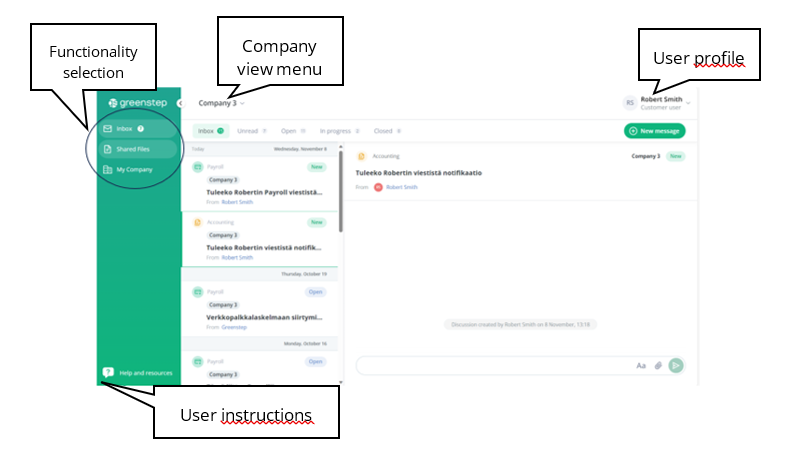
Depending on the type of screen you use to view Greenstep Hub, it may look slightly different. If you need to zoom in, you can do so with the "ctrl +" key combination. You can zoom out with the "ctrl -" key combination. This allows you to adjust the size of the view to better suit your needs.
User rights
Roles
· Customer admin user, or Admin user, manages the user rights of all users in your organization's Greenstep Hub; opens new user rights, and takes care of closing unnecessary ones. Customer admin user has access to all category messages and shared files to which she/he has access to.
· Customer user has access to category messages and shared files assigned to them. The same user can be assigned to multiple categories.
Defining User Rights
Admin user defines other Greenstep Hub users in the organization and opens rights for them. The exception to this is the Payroll category, for which access is always granted by Greenstep, as it contains sensitive data. Therefore, Payroll category users are created by the Admin adding the user to Greenstep Hub and requesting that their Greenstep's payroll contact person grant the individual access to the Payroll category. Admin rights can be assigned to multiple users.
As a reminder, in Greenstep Hub messages are communicated from group to group, so this should be taken into account when defining user rights for different categories. Be careful when requesting Greenstep to open access to Payroll category as this category contains sensitive data.
If for some reason you cannot see messages from a company or certain categories, it is because you do not have rights to those companies or categories.
You can manage your own users through the “My Company” tab.
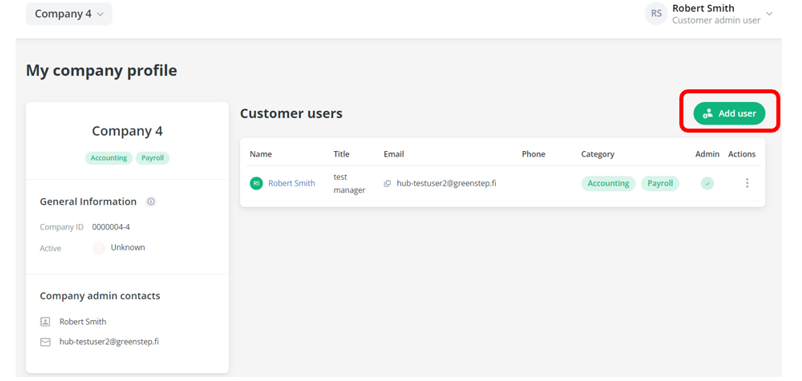
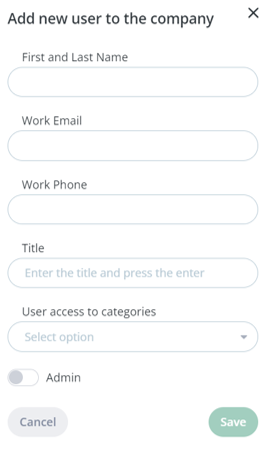
Through the “Add Users” button, you can add your own users and change user rights. By clicking the button, a form opens where you fill in the new user's information. If you want to give Admin rights to another user, it can be done with the Admin toggle switch.
Changing or Removing User Rights
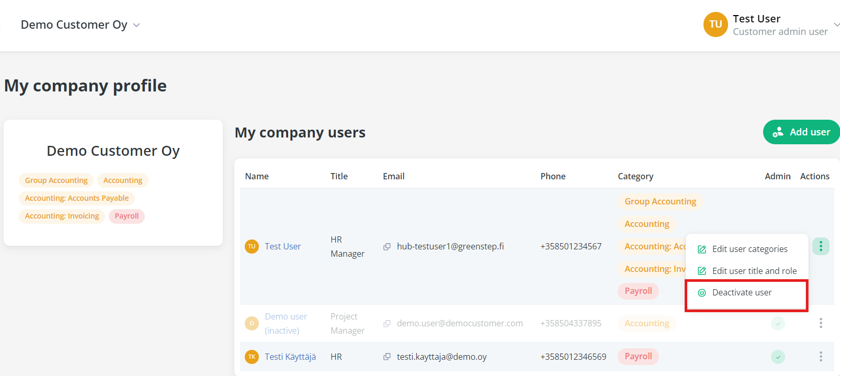
Existing user rights can be changed by clicking the three dots at the end of the user row. This opens a new menu where you can edit categories, change the title and role, or activate or deactivate the user. NOTE! Payroll category rights need to be requested from Greenstep.
Your User Profile
You can access your own user profile by clicking on your name in the top right corner of the page, and then selecting "Profile" from the menu that appears. Here, you can see which companies you have access to. You can also log out from the same menu.
Note: You can view categories and other rights from the "My Company" menu.

Notification settings
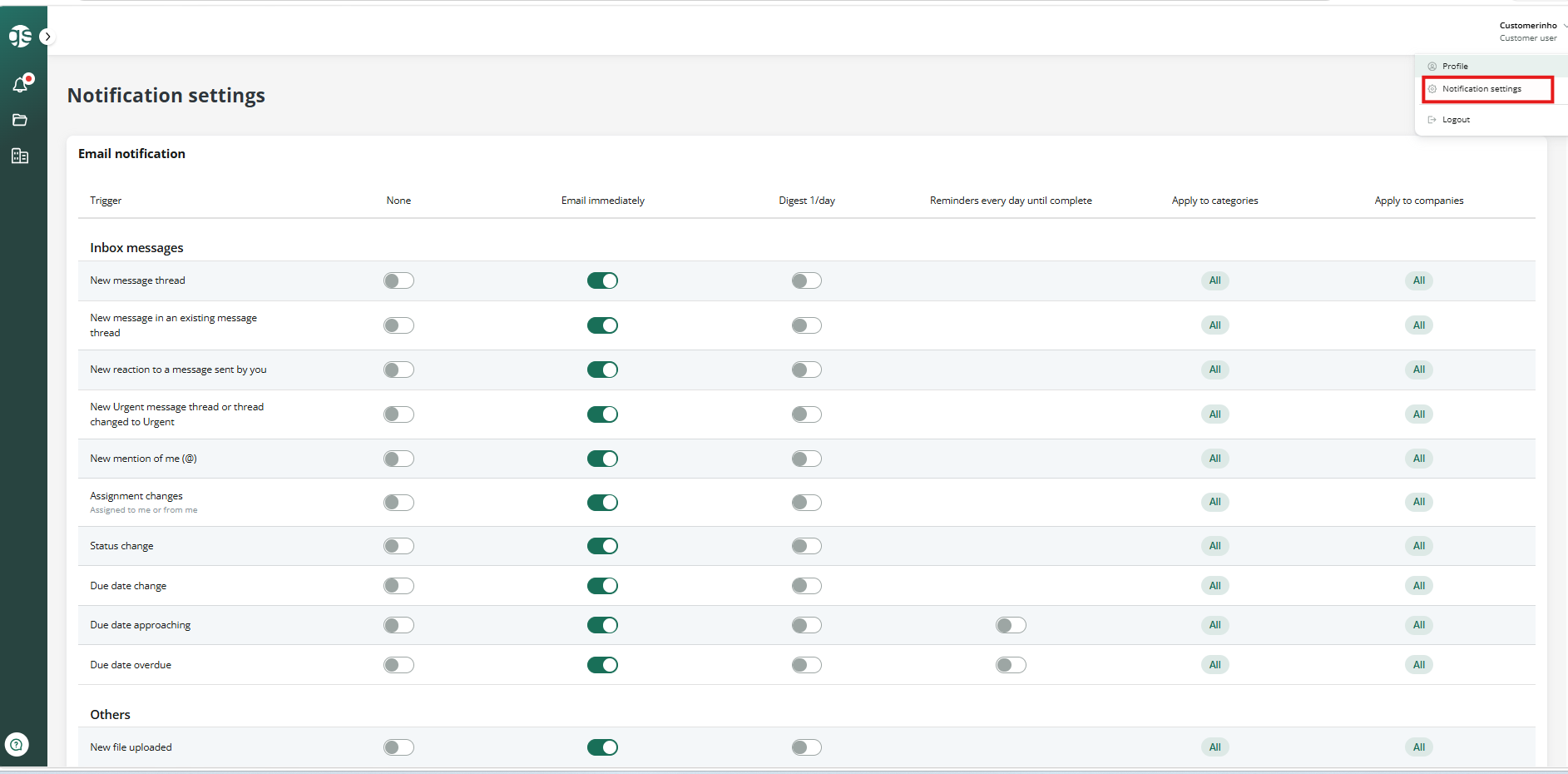
Email notifications are notifications sent to your email about actions happening in Hub, such as a new message thread, a new message in an existing thread, a new file, etc.
You can change your email notification settings through your own Notification Settings page. Please note that email notifications may end up in your spam folder or be quarantined. Email notifications come from address noreply@hub.greenstep.com, and it’s good to check that they come through.
You can set the notifications by company and/or by category.
Explanation of settings:
None = You will not receive any notifications about the specified action in Hub.
Email immediately = You will receive an email immediately about the specified action.
Digest 1/day = You will receive a daily summary of the day's notifications.
Messages
Communication in Greenstep Hub happens through message threads.
Company group view
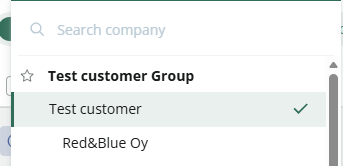
In the company menu, you may see one or more companies depending on how many companies you operate in.
If you operate in multiple companies, we have, in most cases, grouped them together in the message view to facilitate communication. We have elevated one business ID/legal entity (displayed in bold) as a common identifier, under which the other business IDs are attached. If any companies are missing from the list, please ensure that you have been granted access rights to those companies.
When you select Group-ending company name in bold from the company menu, message from all other companies you have access to will be visible in the message view. You can also view messages related to a specific company by selecting that company from the list separately.
The grouping only affects the message thread view. The Shared files and My Company sections remain specific to each business ID.
Sending a message to Greenstep
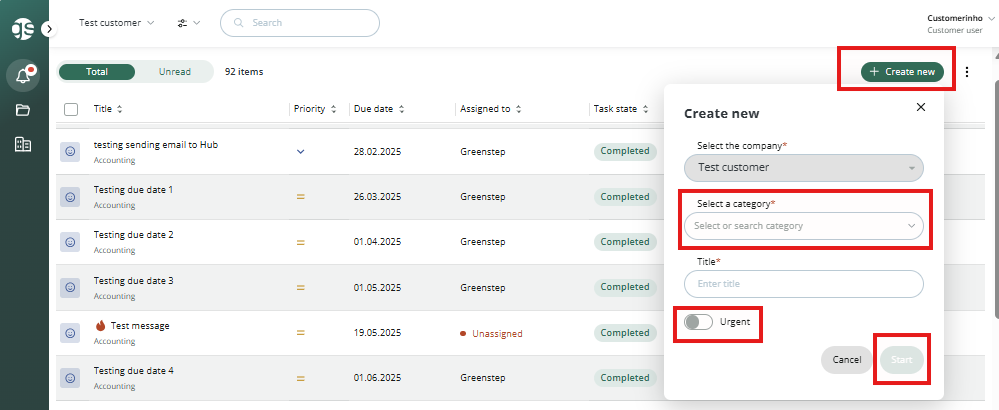
Select "New Message" from the portal (top right corner) and a pop-up window will appear as shown below.
Note: If you have access to multiple environments with different business IDs, please select the correct company from the company menu.
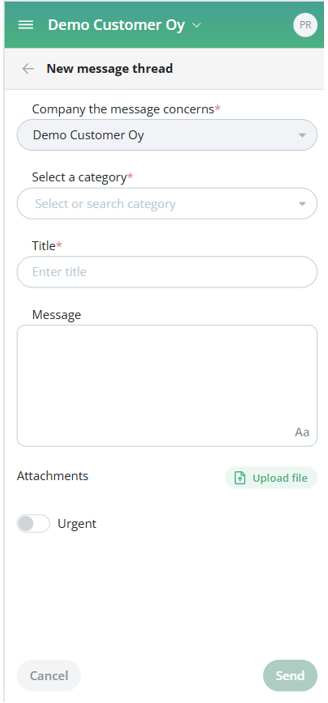
When sending a message, you must always select a category (Select Category), such as Payroll or Accounting. The message subject is added to the "Title" field and the message content is added to the "Message" field. If desired, an attachment can be added by dragging and dropping or pasting it from your computer in the "Attachment" section. The message can also be marked as urgent and then it will show with an exclamation mark. Finally, click "Send" to send the message to the appropriate Greenstep group.
Replying to an existing message thread
New message threads always appear at the top of the message menu, and unread messages are bolded. When you click on a message, it opens in the space next to the message menu.
To reply to a message, use the window at the bottom of the message bar. You can also add an attachment to the message thread through this window. You can add an attachment by clicking on the paperclip icon or dragging and dropping it directly from your file manager.
REMEMBER to click the green arrow to send the message, as an unfinished message will disappear if you move to another view.

Text editing options appear when you press the "Aa" button. Pressing Shift + Enter allows you to change lines, and pressing Enter sends the message.
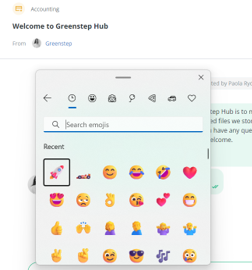
You can add an emoji to your message by pressing the Windows key followed by the period key. This will open a menu where you can choose the emoji you want to add to your message.
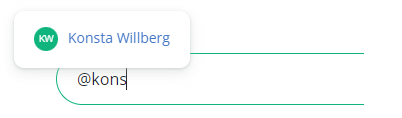
You can also tag another user to a message. Start tagging with @ and then add first 4 characters of the user’s name. Then the name should appear and you can choose the user you wish to tag.
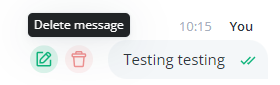
After sending a message, you can edit it or delete it using the buttons next to the message.
Existing message thread can also be marked as urgen with the Urgent/ slider:

Message view
Each message always shows which category it belongs to (e.g. Payroll). The message also shows its status:
1. New = No user has opened the message yet
2. Open = A Greenstep employee has opened the message
3. In Progress = A Greenstep employee has taken the message into consideration and changed the status
4. Completed = The message thread is completed, meaning that no new messages can be added to it. Only a Greenstep user can complete a message thread. If you wish to open a new thread to a completed message thread you press the button on the bottom of the message which says ‘Open new thread related to this thread’ and a new message thread referring to the existing thread starts.
A message thread has also a priority. The default setting is medium.
If a message thread has been put into Completed status you, but your would still like to refer back to that discussion you can use the “Open new thread related to this thread” button on the bottom of the disucssion.
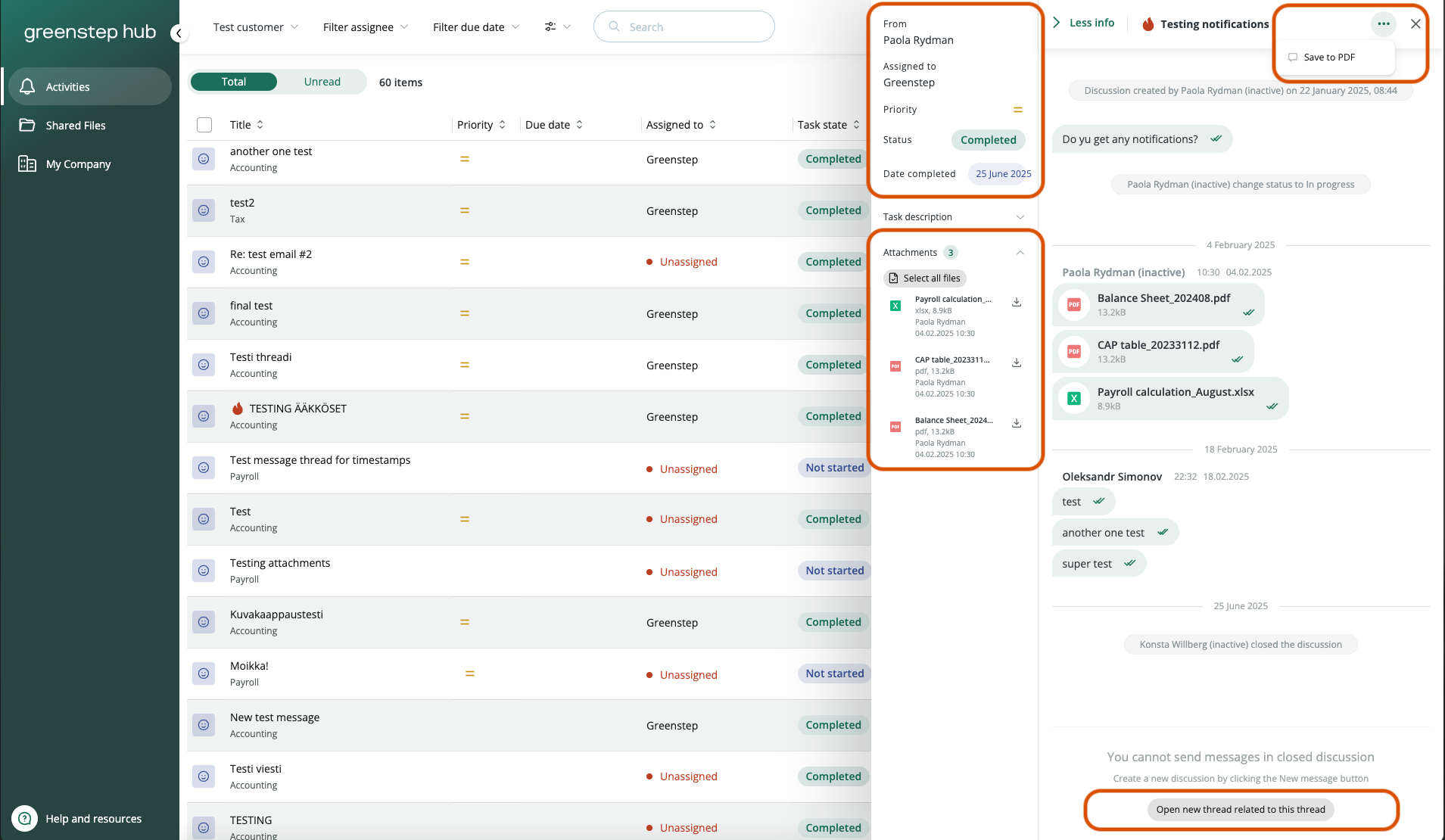
Message thread attachments
If needed, attachments in messages can be viewed in the attachment sidebar by clicking on the paperclip icon in the upper right corner of the message.
When the sidebar opens on the right, you can see all the attachments in the message thread and choose to download or remove them.
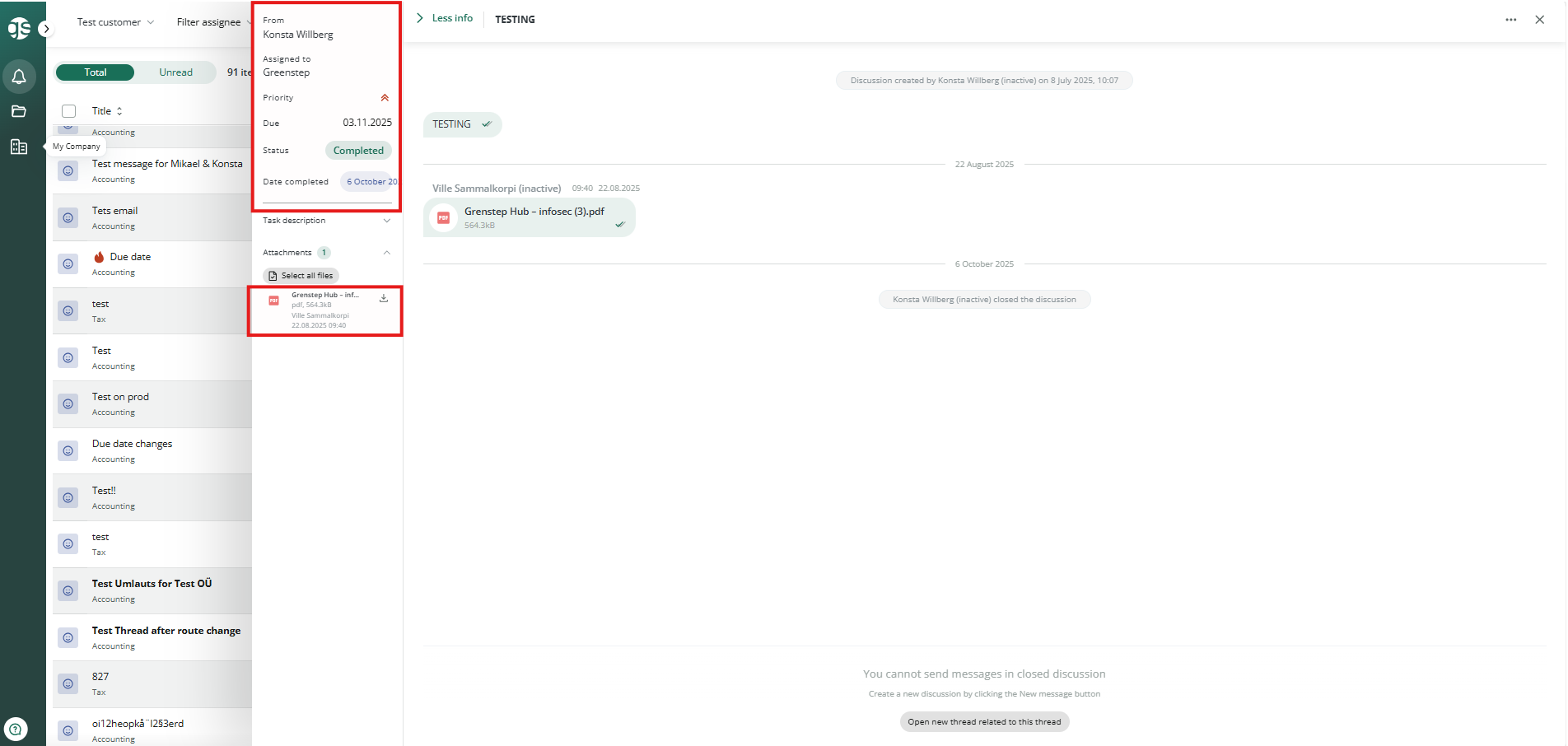
Filters
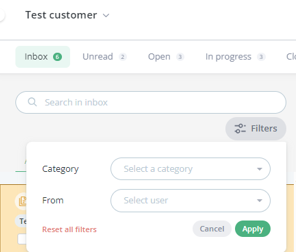
You can use Filters to easily filter messages by category or sender name.
Downloading message thread as PDF
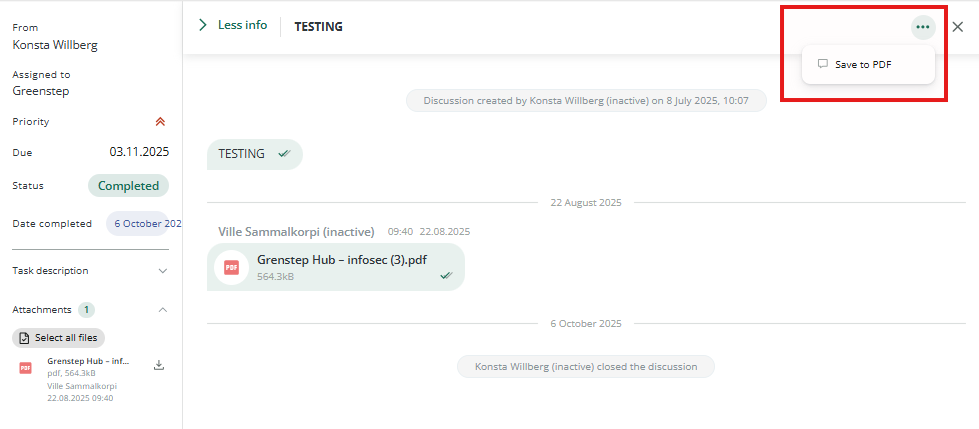
A message thread can be downloaded as PDF for your own records. Click on the small download icon and a PDF will appear.
Email to Greenstep Hub
· There is a possibility to send emails to different categories in Greenstep Hub.
· This feature is for both Hub users and non-Hub users.
· NOTE: The non-Hub users (e-mail or domain) need to be added to the approved sender list.
Sending an email to Hub will not give the email sender access to Hub. Sending email functionality can be used also to forward messages via email to Hub. Or an email address which has not access to Hub can also send information to Hub without having access to the categories.
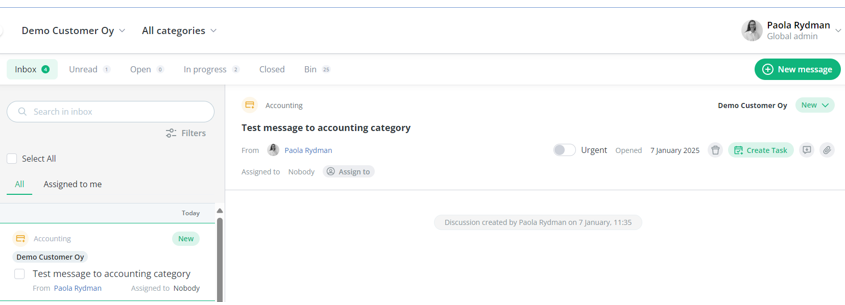
When an email is sent to Hub it will start a new message thread in the selected category and the message thread is then visible to all users who have access to the category.
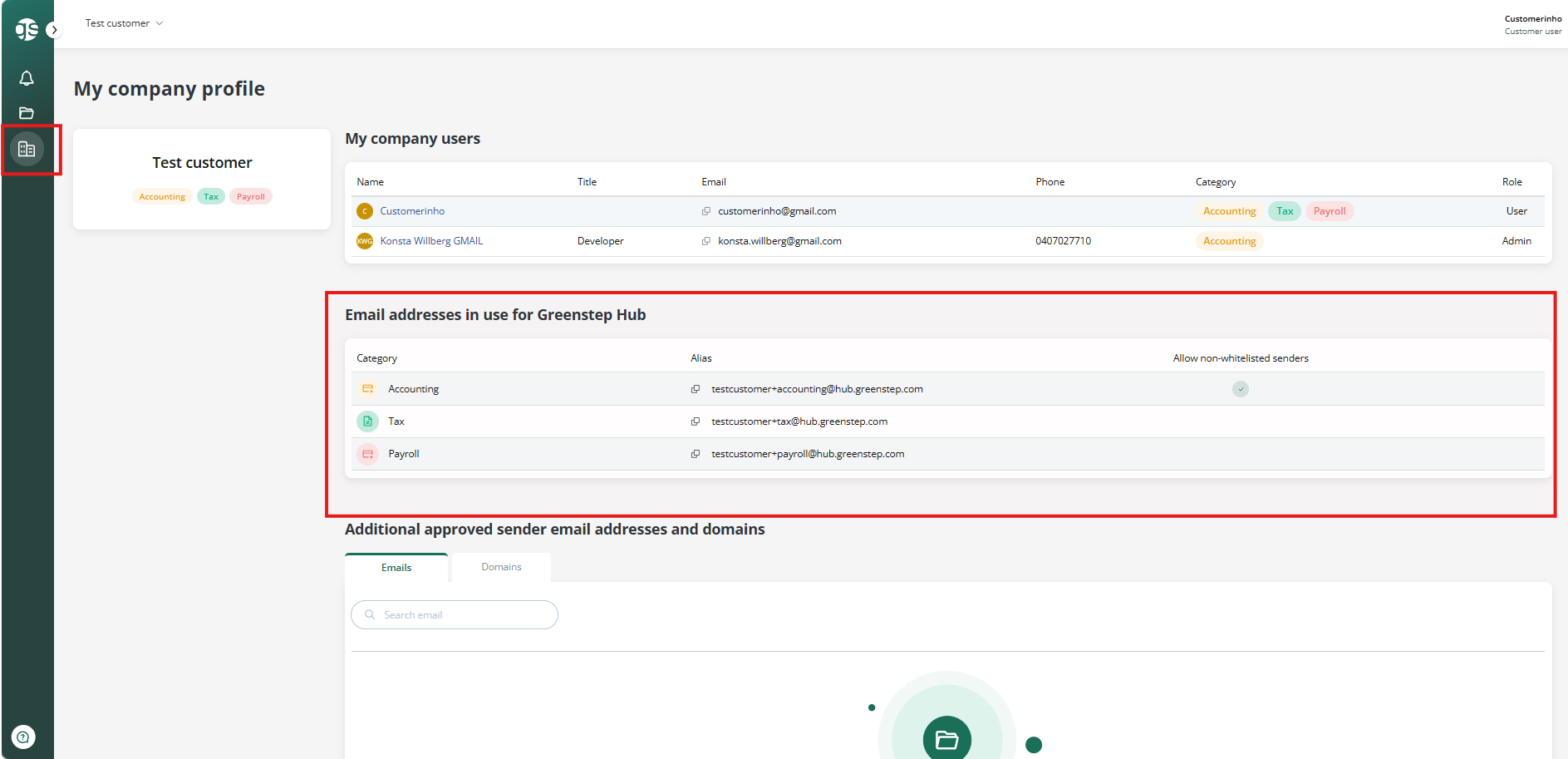
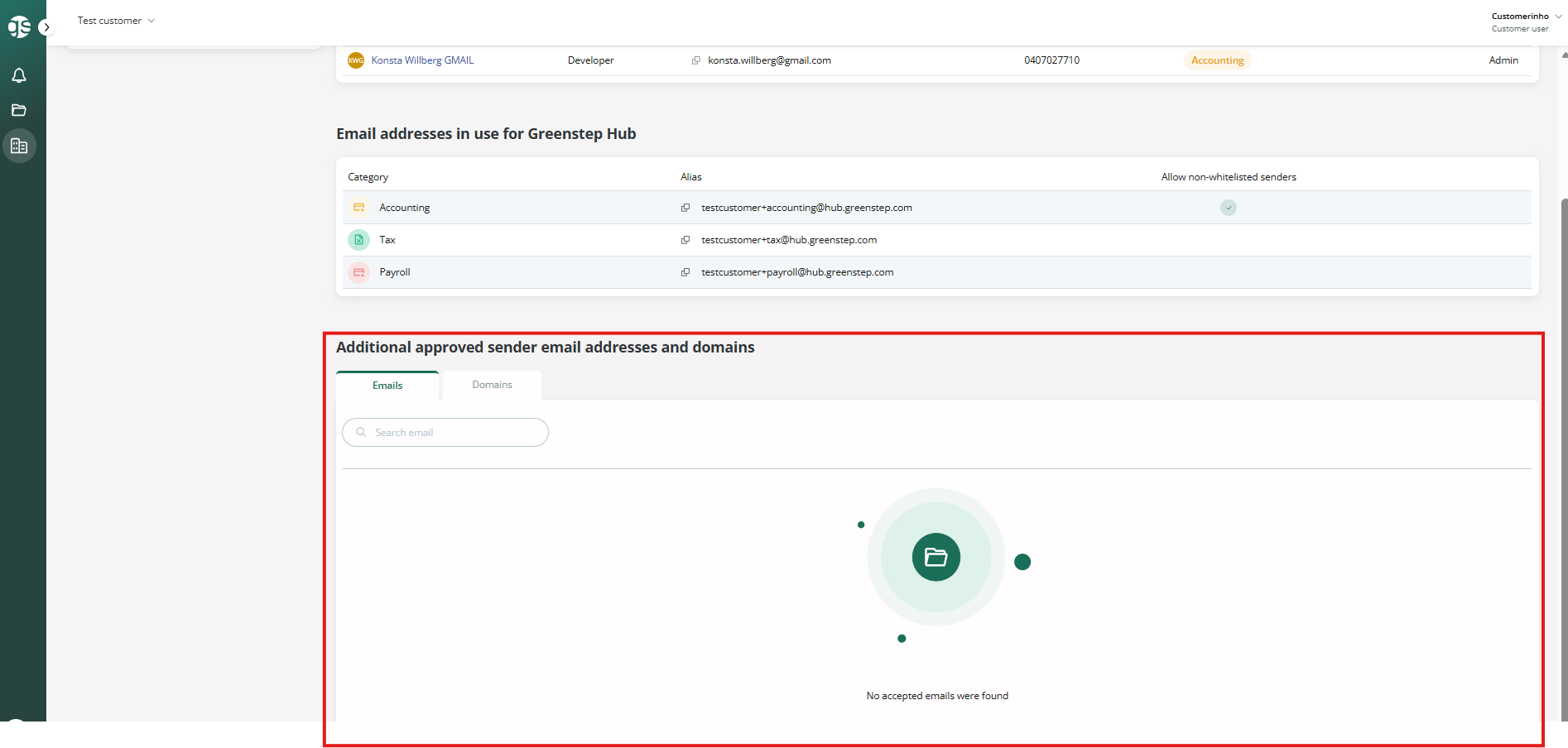
The email addresses to the categories can be found under My Company and the address is easy to copy-paste to the user’s email address line and the message will be sent to the right category.
It is good to understand that a user who has not access to a certain category can also send an email to the category but will not have access to that category.
How to send email to Hub?
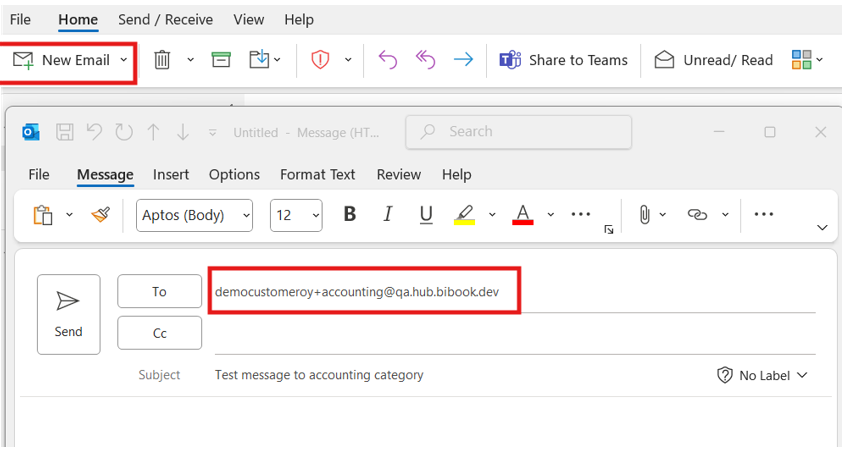
Go to your email and click on new email and add the category specific email address to the address line. And then write the message normally. If sender is not a Hub user then add the user email to the approved sender list.
There is a size limit of 25 Mb for attachments when sending from email to Hub.
The message will then be sent to the Hub:
Who can send emails to Hub?
Emails to Hub can be sent from approved users, email addresses or domains.
All users who have access to Hub are automatically approved i.e. can send emails to Hub.
There is also a possibility to approve other email addresses or the whole domain. You can ask other emails or domains to be approved. Please send a message in Hub to Greenstep. Let us know emails or domains you want to add to the approved sender or domain list. This then allows Hub to receive emails from those email addresses or domains.
The additional approved sender email addresses and domains can be found also in the same view in the My Company section of Hub.
PLEASE NOTE:
· Only when the email has gone through to Hub you will receive the following automatic reply message from Hub:
Your email has been received by Greenstep Hub.
· If you do not receive an automatic reply, then your email did not go through. An email will not go through to Hub unless the sender’s email address is registered as a user or approved in Hub. This is for information security purposes and to avoid spam email.
Shared files
Shared Files view is used to store folders and files that need to be accessible to both you and Greenstep. It is not intended to serve as an archive. By default, Shared Files view includes a separate folder for each category that has been enabled. Please agree on a suitable folder structure with the Greenstep service team.
Adding a new folder (this feature is currently not available)
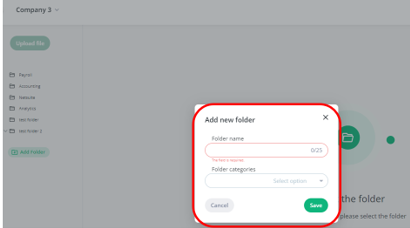
You can add a new folder by clicking the "Add Folder" button.
1. Folder Name: Enter a name for the folder
2. Folder Categories: Select a category for the folder
3. Click Save.
Adding a new subfolder
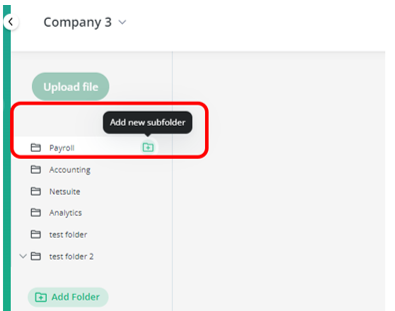
To add a new subfolder, click the "Add New Subfolder" button on the right side of the folder (see image).
Name the subfolder (Subfolder Name) and click Save.
Adding a new file to a folder
Select the folder where you want to add the file.
Click "Upload File".
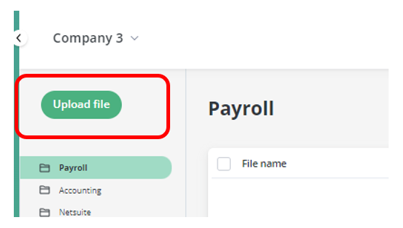
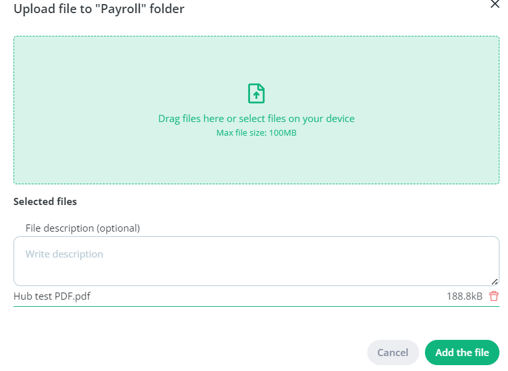
A new pop-up window will appear. Click on the green area in the middle of the window to open the file view, where you can add a file from your computer. You can also drag the file onto the green area. If you want to add more information about the file, you can do so in the "File Description" field. Click "Add the File" and the file will be added to the folder. If you don't see the folder right away, refresh your browser window using the refresh button.
Downloading a file to your computer
To download a file, move your cursor to the right edge of the file row. The cursor will display 4 icons.
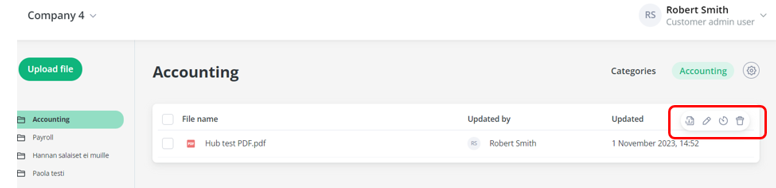
The first icon is Download. Click Download and the file will be downloaded to the Downloads folder.
Renaming a file
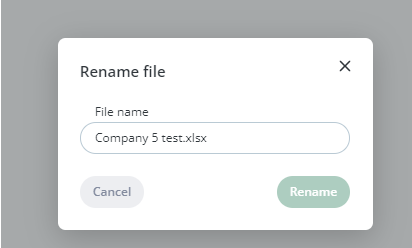
To rename a file, move your cursor to the right edge of the file row. The cursor will display 4 icons. The second icon is Edit, which allows you to rename the file.
Viewing file logs
To view a file's logs, move your cursor to the right edge of the file row. The cursor will display 4 icons. The third icon is History, which allows you to view the file's logs.
Deleting a file
To delete a file, move your cursor to the right edge of the file row. The cursor will display 4 icons. The fourth icon is Delete, which allows you to remove the file from the folder.
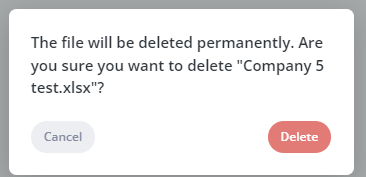
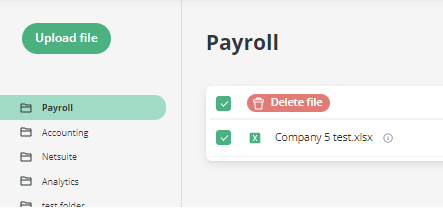
It is also possible to delete a file by using the Delete button: Select the files you want to delete and click "Delete File".
Greenstep Hub mobile version
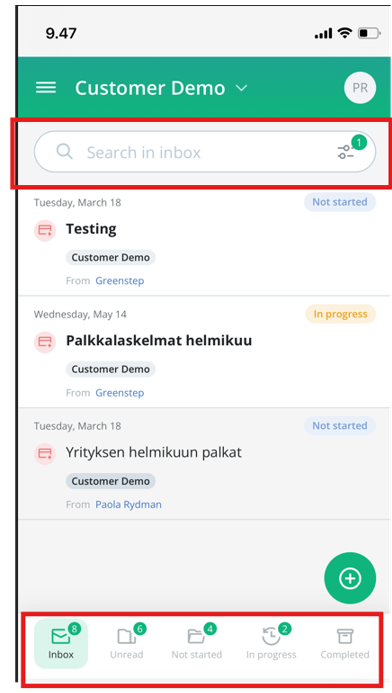
Greenstep Hub inbox is now available also for your mobile phone. Please note that the Shared files and User management cannot be used on mobile version. It remains available on your desktop.
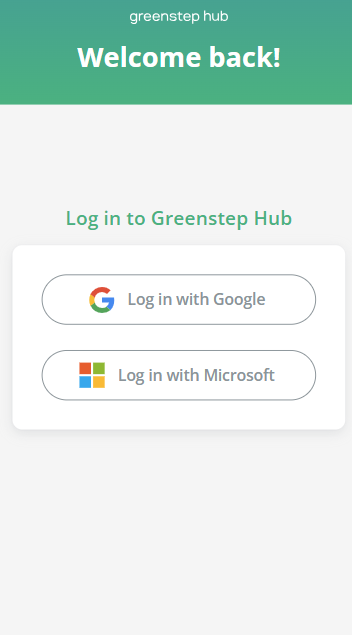
Login the same way as you login on the desktop:
You can choose your Hub environment from the top list>
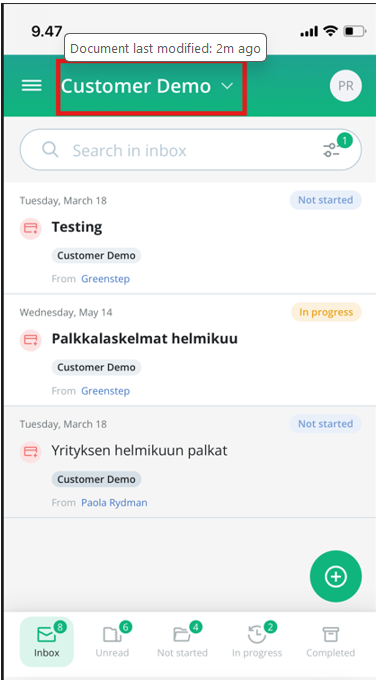
Filters and search are available on the top and the message thread filter can be found on the bottom.
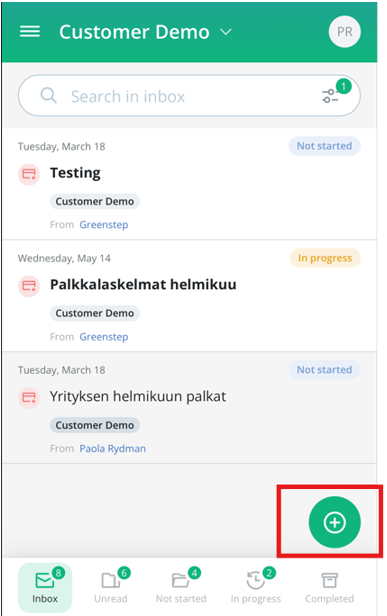
Write a new message by pressing on the green button with + sign:
Was this helpful?